





Our Customer Service will help with charging issues, chargers malfunctions or other related topics.
For business, cooperation or media inquires – please see the Contacts page.
Check our Frequently Asked Questions first for immediate solutions. This is the fastest way to resolve most issues.
The Eleport App is our charging mobile application that gives EV drivers seamless access to over 800 charging points across Estonia, Latvia, Lithuania, Poland, Slovenia, and Croatia.
With one app, you can charge at all Eleport stations without worrying about multiple platforms, roaming fees, or different pricing. You’ll also get the latest updates, promotions, and important notifications directly in the app
Download the Eleport App from the:

Please note that charging with the mobile app is only possible after providing your payment details.
Business accounts, as they previously existed, are no longer available. All accounts now have the same functionality – follow the same steps as with a private account registration.
To receive invoices, you need to select the appropriate option in the app — you can find the instructions below in the “Billing” section.
To charge your car with Eleport App, you need to add a valid payment method.
It only takes a moment, and your data is completely safe with us.
All set!

We recommend registering as a customer, as this allows you to use the Eleport app for charging. There you can explore all Eleport charging sites, track your charging, and receive important updates and promotions. Download the app from App Store or Google Play Store and follow the instructions to log in.
If you don’t want to or are unable to register an account, you can use our Single Payment Portal to charge. All you need to do is to scan the QR-code next to the connector you want to use – this will automatically direct you to our Single Payment Portal in your browser:
1. Can I log in with my Apple or Google account?
Yes, you can sign in quickly and securely using your Apple ID or Google account. This makes the login process faster since you don’t need to remember another password.
2. How do I log in with my Apple or Google account?
Once verified, you’ll be logged in instantly.
3. What if I already created an account with email and password?
If you registered with the same email address as your Apple or Google account, you can link them and log in directly.
4. Is it safe to log in with Apple or Google?
Yes. Using Apple or Google sign-in is secure. We don’t store your Apple or Google password. Authentication is handled directly by Apple or Google, and we only receive the information needed to identify your account (such as your name and email).
5. What if I forgot my Apple or Google password?
If you can’t log in because you forgot your Apple ID or Google account password, you’ll need to reset it directly through Apple’s recovery page or Google’s account recovery.
6. What information will you receive from Apple or Google?
We only receive basic account details (such as your email address and name). Your personal data remains protected under Apple and Google’s privacy policies.
Download the Eleport mobile app from the App Store or Google Play Store. Open the app and navigate to the map view. Now you can see all Eleport charging locations.
First, navigate to the station you want to use.
Connect compatible connector into your viehicle.
Authorise the session. Use one of the option:
Charging starts automatically after authorisation. It may take up to 60 seconds.
Stop charging. Use the same method you used to start charging.
Disconnect the connector and return in to the holder.
*Check if you have a valid payment method added – otherwise the session will not start.
If you are experincign issues with starting a session, please check those 4 short points – there is a big chance it will resolve the issue.
1. No payment method added in the app
Charging will not begin until payment method is set up.
👉 Open the Eleport App, go to Payment Methods, and make sure you have a valid payment method added.
2. The cable is not plugged in yet
You tapped “Start session” in the app or used RFID card, but the cable was not connected to your car.
The charger will react only after the cable is connected.
👉 Plug in the cable first, then press “Start” in the app, or use RFID card.
3. The cable is plugged in, but the session was not started in the app
Charging does not begin automatically.
👉 After plugging in, open the Eleport App, select the charger, and tap “Start session” or use RFID card.
4. The wrong cable or charger ID is selected
Some chargers have more than one cable.
You might be plugged into one cable but started a session on another ID.
👉 Check the charger ID on the station and make sure the same ID is selected in the Eleport App.
The following factors can affect the charging speed of your EV:
Battery temperature:
If you notice a slower charging speed than usual, you should pay attention to how warm it is outside and whether you have used fast charging before. Each quick charge using fast charging increases the temperature of the battery. If the battery hasn’t cooled down enough, or if you have been using fast charging frequently, the vehicle might start to limit the charging power of the car for its own protection. The only solution in this case is to have a break from charging so the battery has time to cool down.
Low battery temperature also affects the charging capacity, and this is an especially common issue in our climate. In order for the vehicle to charge at the advertised rate, the battery temperature must generally be 20°C or higher. Some EVs also have option to pre-condition the battery on your way to the charging location. Preheat should be turned on about 10-15 minutes before charging for best result.
Charging power curve (SoC):
The general rule for EVs is that the emptier the battery is, the more charging power it can handle. The battery charge level with the lowest charging power capacity is 80-100%. Therefore, if your battery charge level is already over 80%, you can expect to see a lower charging power, and this is completely normal.
Charger power
There are dozens of electric car chargers on the market, and their capabilities are divided into four broad categories. The table below indicates the typical power, usage and charging time of these types (approximate values):
Type | Power | Typical usage | Charging time* |
Slow (AC) 1-phase | 2-7 kW | Charging from home socket | 8-29 h |
Standard 3-phase | 11-22 kW | Charging from home charger | 2.5-5 h |
Fast (DC) | 50-100 kW | Public chargers | 0.5-1.5 h |
Ultra fast (DC) | > 100 kW | Public chargers by the roadside | < 20 min |
*Charging times are for 58.8kWh batteries, the average battery size for EVs (source: https://ev-database.org/ ).
In the case of alternating current or AC chargers, it’s necessary to pay attention to the capacity of the onboard charger in the car.
Charging ends automatically when the vehicle’s charge level reaches 100%. However, you do need to free up the cable and parking space so others can use them once your car is fully charged.
You can use the Eleport App to check whether the required charging connector is available or currently in use.
Interrupting another user’s charging session is not possible!
CCS
With these types of charging cable, the cable is always locked by the car. Therefore, in order to unlock the charging cable, it must be released by the vehicle. In general, this can be done by pressing the door unlock button on the car key 2-3 times. Here are specific instructions for different makes of car:
Volkswagen, Škoda, Audi: Press the door unlock button 2x or wait 5 min.
Opel Ampera-e: Hold down the charging slot lock button on the car key.
Tesla: Release the cable via the vehicle’s internal screen. In extreme cases, use the emergency trigger on the left side of the luggage compartment or use left rear door handle by holding it pressed for 3 seconds.
Citroen, Peugeot, Opel: The cable should unlock automatically. If it does not, press the button to unlock the doors 2-3 times.
Renault, Nissan: Use the button for opening the loading hatch on the left dashboard inside the vehicle to unlock the cable.
Hyundai, Kia: Press the door unlock button on the car key. For some models you have to hold “unlock” button and for some you have to press it 3-5 times quickly to release the cable.
Type 2 connectors
In case of AC chargers without its own cable (only socket) sometimes order of actions is to be followed. It is important to end the session, unlock the EV to release the cable and first unplug it from the charger, and then from the EV.
CHAdeMO connectors
Make sure the charging is complete. The cable unlocks automatically. However, if this does not happen, that means the locking mechanism is jammed. A technician must come to the site and release the cable manually.
Note: For every car there has to be a mechanical way to unlock charge port in case car loses power for 12V battery.
If this happens, first of all make sure that your car doesn’t have a set battery charge level limit. If it does, this will usually be set so charging automatically stops at 80% or 90%, but it can be set to 50% as well.
If this is not the issue, check whether a smart charging app you use has paused or stopped the charging session. Some apps manage charging automatically and can interrupt the process.
It is possible that the charging was interrupted due to an error. If this is the case, unfortunately the only option is to start the charging process again.
Please note: If this occurs and you are charging with a CCS cable, the cable must be physically disconnected and then reconnected.
If your charging information isn’t displayed on the charger screen, check if your app is displaying any information and session parameters. If not, please disconnect the cable, wait a few moments, and then check if the information appears on the screen.
If the charging information selection does not appear on the screen after this, please contact our customer support.
If the charger screen displays the message “All sockets are in use”, even though no electric vehicles are currently connected or charging, please report this to our customer support team.
Parking spots at charging stations are intended exclusively for the duration of vehicle charging.
Once charging is complete, please vacate the space to allow other drivers to use it.
Parking a vehicle without authorization, or staying in the spot after your charging session has ended, may lead to additional fees.
Unfortunately, this happens sometimes. EV charging spots are private spaces reserved only for vehicles that are actively charging.
If an ICE vehicle is blocking the spot:
In the meantime, please use the Eleport App to find another nearby charging location.
Please note that our customer support team cannot resolve this situation directly, and contacting the site staff is typically the quickest solution.
Charging stations may only be used while your vehicle is actively charging.
If a charging session cannot be started, the vehicle must be moved to a regular parking space to avoid a fine.
Why did I receive a fine?
Parking rules are set by the property owner. Most locations allow parking at a charging station only during an active charging session. If the car is parked without charging, or if local parking rules are not followed, a fine may be issued by the parking operator or local authorities.
Can Eleport cancel or refund the fine?
No. Eleport does not issue parking fines and cannot influence, cancel, or refund them.
Parking enforcement is fully managed by the location owner, parking operator, or local authorities.
How can I avoid parking fines in the future?
Before starting a charging session, please make sure to follow the local parking rules. These may vary depending on the location.
Some sites have additional requirements that must be followed. These can include:
Always check the signage at the location to ensure compliance.
What if the signage is unclear or incorrect?
If you notice unclear, missing, or inconsistent signage, please notify our customer support team.
We will forward the information to our Site Operations team so they can review the location and request updates from the property owner if needed.
All customers now use a pay-as-you-go system. This means the cost of each charging session is charged automatically to your saved payment card right after the session ends.
Why do we use pre-authorisation?
Charging an EV is a transaction without known final cost before it is initiated and finalized. To make sure customers have enough funds to cover the usual cost of charging, a pre-authorization (reservation) is done. This is standard industry practice and helps reduce financial risk.
How does it work?
When do you get your money back?
That depends on your bank. Some banks release the money immediately, others can take up to 30 days. On average, it usually takes 1–3 days. For exact timing, you should contact your bank.
Who does this apply to?
Pre-authorisation applies to all customers – both ad-hoc and registered – except for Corporate Billing Partners, who are billed monthly.
What if you don’t see your money back after 5–10 working days?
If that happens, you should contact your bank directly, as we have no control over when the funds are released.
It is generally recommended to use credit cards, so the period to release the reserved funds can fit into your usual billing period, so the transaction will be settled in the meantime.
Here are the most common reasons why a payment might not go through. It’s often a quick fix! 💳✨
1. Your bank didn’t approve the payment
This can happen if the account balance is too low or the card has spending limits.
👉 Please check your balance or limits with your bank and try again.
2. Your bank couldn’t confirm the payment (3D Secure)
Sometimes the bank needs an extra confirmation step, like a code or app approval, and it may not come through.
👉 Try again and make sure you confirm the payment in your banking app or via SMS.
3. Your bank temporarily blocked online payments
Banks sometimes block payments for safety reasons — especially with new services or abroad.
👉 Open your banking app and check if:
Too many attempts locked the card
If the payment is tried several times in a row, the bank might block it for a short time.
👉 Wait a few minutes and try again, or check your banking app for alerts.
After every charging session, you’ll automatically receive a receipt by email.
By default, all charging sessions are pay-as-you-go, and a receipt is automatically sent to your email after each session.
If you’d like to receive consolidated invoices summarizing your monthly expenses for accounting purposes (not a payable invoice, but a summary of already paid sessions), you’ll need to enable this option in the app under Invoice details before starting a charging session. It only takes a moment:
All set! Invoices will be sent to your email every month.
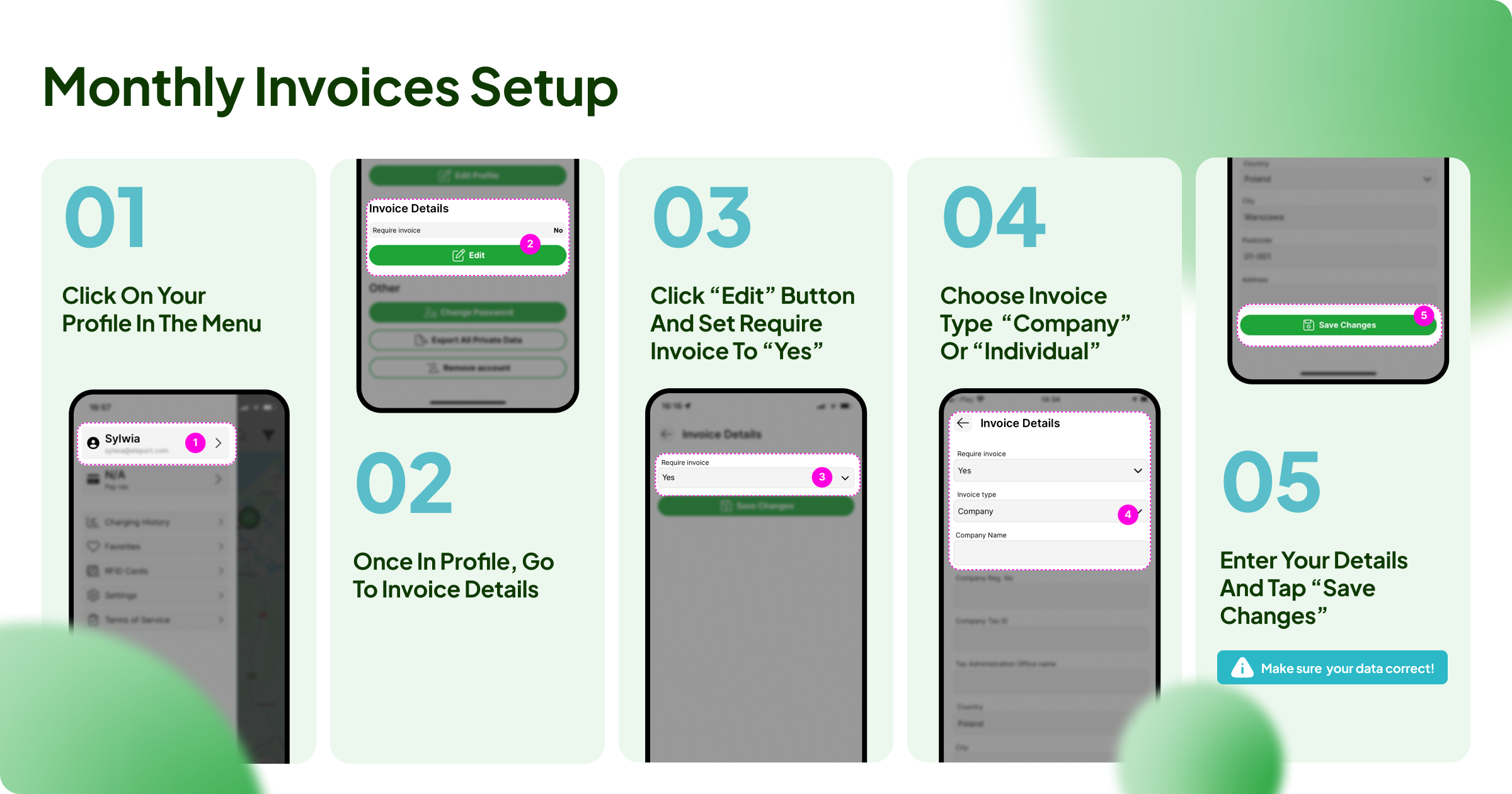
Monthly consolidated invoices are available only for Partner accounts.
If you would like us to submit your request for monthly invoicing, please send an email to: jurgen.jurgenson@eleport.ee with email subject “Monthly report request from [Company name]”
Eleport App/RFID:
Choose “Charging History” from the App’s menu.
Single Payment Portal:
Charging summary appears only immediately after the session, you can still retrieve all past receipts later.
How can I access my receipt after completing a charging session?
You can view or download your receipt using our website:
Will I receive an invoice by email?
Yes. An invoice is sent automatically to the email address you entered during payment.
Is the receipt portal linked only to Single Payment Portal sessions?
No. The receipt portal shows all charging sessions completed with the same payment card. This applies to unregistered sessions and any sessions that may have been connected to a subscriber account.
You can test if the card reader is working by swiping the card. If you hear a beep, the card reader is working and this means something else is wrong. If the card reader doesn’t beep at all, then please contact technical support.
If the information: “Card rejected” is displayed on the screen, there are two possibilities:
In both cases, please contact customer support.
You can delete your account directly in the Eleport App. Simply open the main menu, select your profile, and then click the “Delete Account” button at the bottom of the screen.
Deleting a partner account:
Please send your request to delete your account and data via contact form (https://eleport.com/contacts/) . Our support team will reach out to confirm your intention to delete the account and disable your RFID cards and/or keychains if applicable.
Your contract will be ended, the RFID cards closed, and your user account details deleted. Data related to your contract, transactions and invoices will be stored in accordance with local law.
To close your account you must have no ongoing charging session and all your invoices must be paid.
The “Emergency Stop” button should only be used in an emergency. To finish charging, use the App or your RFID card/chip.
If this rule is not followed, a short-term blocking will be applied to the relevant account.
If a car-sharing car is preventing you from charging, please call the customer support line of the car-sharing provider and ask them to open the vehicle doors so that you can drive the vehicle away from the charger. If moving the vehicle is not necessary, simply ask them to release the charging cable and ask them to move the car as soon as possible.
The customer support phone numbers for ride-sharing services are as follows:
Estonia: